2FA & force 2FA
What this is
Optional second-factor authentication for user accounts:
| Factor | Notes |
|---|---|
| TOTP (authenticator app) | Google Authenticator, Aegis, 1Password, etc. + one-time backup codes |
| Passkeys (WebAuthn) | Face ID / Touch ID / Windows Hello / security keys — after password (not passwordless yet) |
Plus an admin force 2FA policy that requires everyone to enrol either factor before using the fleet UI. Template secrets still use a separate step-up TOTP even after login 2FA.
Available from v1.2.0: passkeys as a second factor (register / list / revoke on Account; login step-up). SSO / OIDC login uses the same PiHerder 2FA gates — see SSO / OpenID Connect.
Why it exists
Password-only access to a fleet control plane is risky on shared or exposed URLs. 2FA raises the bar for stolen passwords; force 2FA is for households/teams that want a policy floor. Step-up for secrets limits how long cleartext passwords stay on screen after a unlocked session.
End-to-end: protect the instance
- As a user: Account → enable TOTP and/or add a passkey → if using TOTP, store backup codes offline.
- Optional trusted device (default 30 days, from
TRUSTED_DEVICE_DAYS) if you accept that trade-off — only on machines you control. - As admin: Settings → Security policy → Who must enrol 2FA (everyone, operators+, or admins). Optional grace 0–60 days.
- Users in scope without any second factor hit
/auth/force-2faafter password or SSO login (password change-on-first still first if required), then Set up 2FA on Account. - For templates, enable Require 2FA for template deploy & secrets if operators should not deploy without TOTP.
Optional per-user 2FA
Account (/auth/account) — compact hub cards (same pattern as Settings → Security policy). Each card shows a one-line summary; Edit opens a sheet for profile, picture, password, passkeys, TOTP, push, and trusted devices.
Passkeys (WebAuthn)
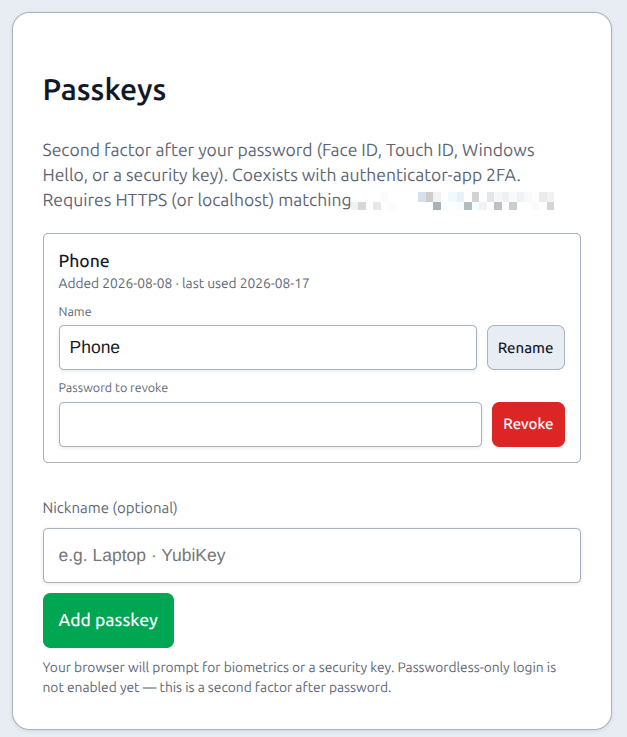
Account → Passkeys (#account-passkeys):
- Click Add passkey (optional nickname).
- Complete the browser prompt (biometrics or security key).
- At next login, after password or SSO, choose Use passkey (or still enter a TOTP/backup code if enrolled).
| Requirement | Detail |
|---|---|
| RP ID | From PIHERDER_HOSTNAME (or host of PIHERDER_PUBLIC_URL) |
| Origin | From PIHERDER_PUBLIC_URL (must match the URL in the browser bar) |
| HTTPS | Required except localhost — LAN HTTP without matching RP/origin will fail registration |
| Limit | Up to 10 passkeys per user |
| Revoke | v1.3: any enrolled 2FA (passkey step-up, TOTP, or backup code). Password only when no 2FA is enrolled. SSO-only users can revoke without a local password. |
Passkeys satisfy force 2FA the same way TOTP does. Passwordless (discoverable credential only, no password) is not enabled in v1.2.
Authenticator app (TOTP)
Account → Two-factor authentication (#account-2fa).
Regenerate backup codes (Account → Two-factor):
- Click Generate new codes…
- Confirm modal: current password + authenticator code (or one unused backup code).
- On success, new codes are shown once (delivered via an HttpOnly flash cookie — not in the URL); old unused codes are invalidated; trusted devices are revoked.
Password alone is not enough — this is a deliberate step-up so a stolen session password cannot mint recovery codes.
Trusted devices
On the 2FA login screen you may trust this device for N days (Settings / env default 30). While trusted, that browser skips the second-factor prompt after password or SSO login.
- Sign out does not clear trust — you still need the password, but not the authenticator, until the cookie expires or you revoke it.
- Cookie is per account (
trusted_device_{user_id}) so two logins on one browser do not overwrite each other. - Checking “Trust this device” again on an already-trusted browser refreshes the same entry instead of adding a duplicate.
Account → Trusted devices shows each row with:
| Field | Source |
|---|---|
| Display / friendly name | Optional rename (e.g. “Work laptop”) — save per row (✎ Edit, not always-open form) |
| Device type | Summarised from the browser user-agent |
| Last IP | Last seen client IP for that trust cookie |
| Last used / expires | App timezone timestamps |
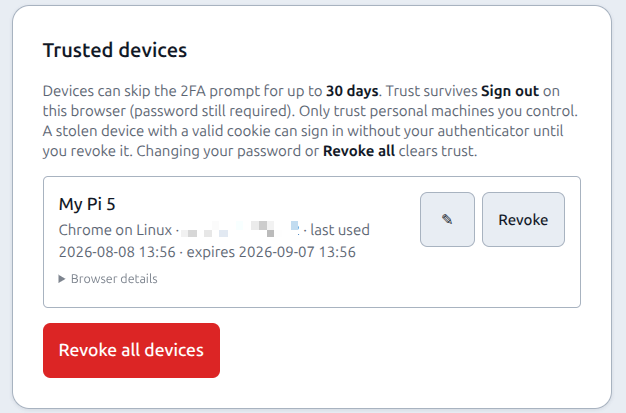
| Revoke | One device or Revoke all |
| Risk | Mitigation |
|---|---|
| Stolen laptop with a trusted cookie | Revoke under Account → Trusted devices; password change / Revoke all clears trust |
| Shared kiosk | Never enable trust |
Cookies are HttpOnly, SameSite=Lax, path=/, and Secure when PIHERDER_PUBLIC_URL is https://… (or COOKIE_SECURE=true).
Login rate limits
Rough production defaults (in-process; disabled when PIHERDER_DISABLE_AUTH_RATE_LIMIT is on for E2E):
| Surface | Limit (approx.) |
|---|---|
| Password login | 10 attempts / 5 minutes / IP |
| SSO login start | Same order of magnitude per IP |
| 2FA code | 12 attempts / 5 minutes / IP |
| Registration | 8 attempts / 10 minutes / IP |
Force 2FA (who must enrol)
Where: Settings → Security policy. Available from v1.3.
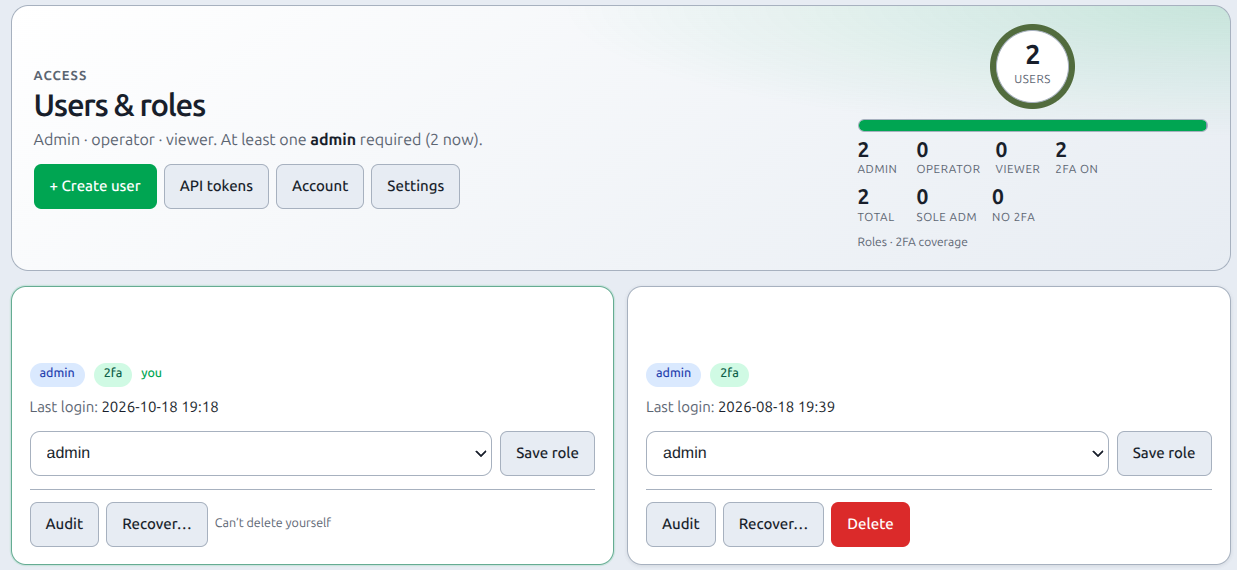
From 1.11.0, a passkey counts as the second factor. Signup with Force 2FA on can register a passkey, and that passkey satisfies the enroll wall. The Users list shows 2FA for that account. An authenticator app stays available.
| Setting | Effect |
|---|---|
| Who must enrol | Off · admins · operators and admins · everyone. Users in scope without TOTP or a passkey go to /auth/force-2fa. Changing this, or Require 2FA for template deploy & secrets, opens an admin alert. The alert names the admin and the client IP. Grace days and the other security settings do not. |
| Grace | 0–60 days after you turn the policy on (home-lab). 0 = immediate. |
| Trusted device skips login 2FA | Default on (same as v1.2). |
| Trusted device skips the enrol wall | Default off. |
| Step-up windows | Account / secrets / console grant minutes. |
| Allowed factors | Per surface (login, account, secrets, console) × TOTP / passkey / backup. Console backup codes stay off by default. |
| Console 2FA extras | Every-new-shell, prefer/require passkey — same card. Timeouts live under Settings → Console. |
Password change-on-first-login still runs first if required. Applies after password and SSO identity proof.
Stored in PostgreSQL (appsetting) — travels with DB dumps and self-backup.
Lost factors / sole admin
If force 2FA is on and the only admin lost TOTP and passkeys, use host recovery — not this Settings page:
→ Locked out / sole admin recovery (./scripts/recover-admin.sh)
SSO login and 2FA
| Entry path | PiHerder 2FA |
|---|---|
| Password | Existing step-up when TOTP/passkey enrolled |
| SSO (OIDC) | Same helpers — IdP is first factor only; enrolled 2FA still required; Force 2FA enroll wall still applies |
| Account link / unlink / remove password | Re-check 2FA in that sheet (Confirm passkey or 6-digit / backup). Unlink uses a confirmation sheet. Failures stay there — they do not open the authenticator-app card with a generic “code required” banner. (SSO page) |
IdP multi-factor does not replace PiHerder 2FA unless an admin enables IdP MFA satisfies PiHerder login 2FA (default off). Missing or unknown amr / acr values fail closed. That option never skips Account, secrets, or console step-up.
Template step-up
Viewing cleartext template secrets requires a separate TOTP unlock (step-up), even if you already completed login 2FA. See Template secrets.
Optional: Require 2FA for template deploy & secrets in Security policy.